
Download Compare Folders – Free Folder Comparison Tool for Windows & macOS
Overview
Compare Folders is a lightweight, free utility that helps users quickly spot differences between two or more directories on their computer. Whether you’re a developer juggling source‑code trees, a photographer organizing massive image libraries, or simply someone who wants to clean up duplicate files, this tool offers a clear, text‑based interface that highlights mismatched files, missing items, and size discrepancies with a single click. The built‑in search function lets you locate specific filenames or text snippets across the compared folders, turning a potentially hours‑long manual audit into a matter of seconds.
Because it runs locally without needing an internet connection, Compare Folders is a secure way to keep your data private while still benefiting from powerful comparison algorithms. The application’s minimalistic design means there’s virtually no learning curve—just drag, drop, and compare. In addition to its core comparison engine, the software provides export options, allowing you to save reports in CSV or plain‑text format for further analysis or documentation.
Overall, Compare Folders positions itself as a time‑saving, no‑cost solution for anyone dealing with large, complex folder structures.
Key Features & Benefits
- Instant side‑by‑side comparison of any number of folders.
- Text‑based search that filters results in real time.
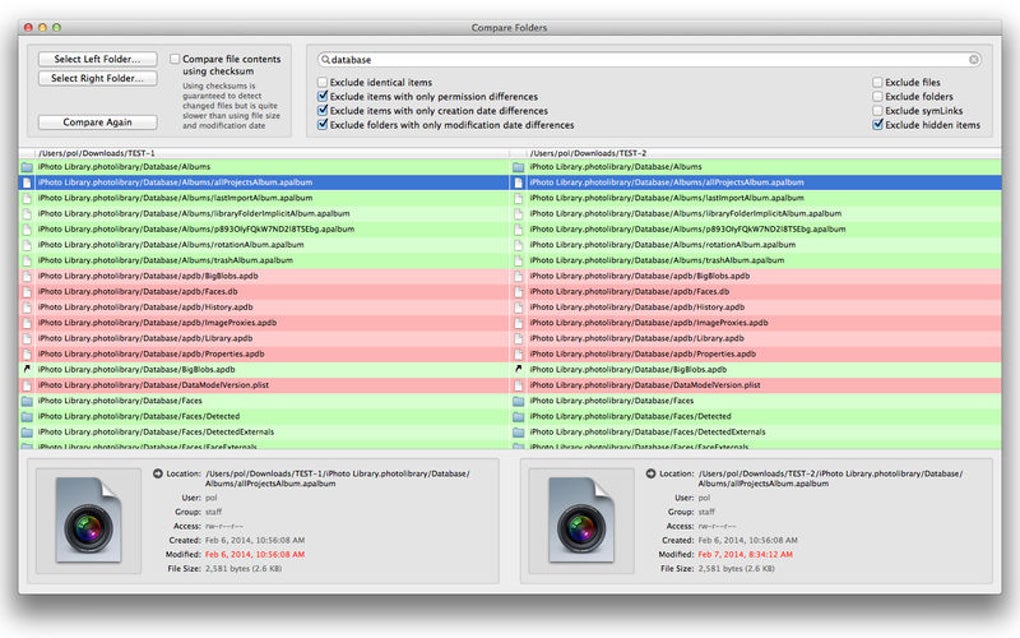
- Highlight of added, removed, and modified files with colour coding.
- Support for recursive deep‑folder scans.
- Exportable reports in CSV, TXT, or HTML.
- Drag‑and‑drop interface for quick folder selection.
- Lightweight executable with no installation required (portable version).
- Free for personal and commercial use.
Why These Features Matter
When you’re managing thousands of files, visual cues become essential. The colour‑coded highlights let you instantly see which files are missing from one folder or have been updated in another. The real‑time search feature eliminates the need to scroll through endless lists; simply type a keyword and the view narrows down to matching items.
Exporting capabilities are a boon for auditors and project managers who need to keep a record of file discrepancies for compliance or reporting purposes. Moreover, the portable nature of the software means you can run it from a USB stick on any Windows or macOS machine without worrying about admin rights or registry changes. This flexibility is especially valuable for IT support staff who need to troubleshoot on remote systems.
Finally, because the tool is free, it removes the financial barrier that often stops small teams from adopting a proper file‑comparison workflow.
Installation, Usage, Compatibility & Practical Insights
Installation & First‑Run Steps
Getting started with Compare Folders is straightforward. After downloading the installer from the official website, run the .exe file on Windows or the .dmg on macOS. The wizard guides you through a typical install process—accept the license agreement, choose an installation folder (the default works for most users), and click “Install.” For those who prefer a zero‑install approach, a portable ZIP archive is also available; simply extract the contents and launch CompareFolders.exe (or the macOS equivalent).
Once opened, the main window displays two empty panels labeled “Folder A” and “Folder B.” Drag your target folders into each panel or use the “Browse” buttons to locate them manually. Press the “Compare” button, and the application will begin scanning. Results appear instantly, with mismatched files highlighted in red, new files in green, and unchanged items in gray.
You can refine the view using the filter toolbar at the top, which lets you hide identical files or focus on size differences.
How to Use the Search Function Effectively
The built‑in search bar sits above the result list. As you type, the list narrows, showing only files that contain the entered string in their name or path. This is particularly handy when you know part of a filename but not its exact location. The search supports wildcards (*) for broader matches, and you can toggle case‑sensitivity via the gear icon next to the bar. After locating the desired entries, right‑click to open a context menu offering actions such as “Open Containing Folder,” “Copy Path,” or “Export Selected.” This workflow speeds up tasks like locating missing configuration files across development environments.
Operating System Compatibility (itemprop="operatingSystem")
Compare Folders runs natively on both Windows 10/11 (64‑bit) and macOS Catalina (10.15) or later. The Windows version requires the .NET Framework 4.7.2, which is pre‑installed on most modern systems. The macOS build is a native Cocoa application, ensuring smooth integration with Finder and the system’s security model. While a Linux version is not officially provided, advanced users can run the Windows executable through Wine with comparable performance.
Pros & Cons
- Pros:
- Free, with no hidden fees or trial limitations.
- Fast, accurate comparison engine that handles large datasets.
- Intuitive UI that requires virtually no training.
- Portable version for on‑the‑go usage.
- Export options for documentation and audits.
- Cons:
- No built‑in file synchronization or copy‑move automation.
- Limited to two‑folder comparisons per session (cannot compare more than two at once).
- Advanced filtering (e.g., by file type) requires manual configuration.
Frequently Asked Questions (FAQ)
Can I compare more than two folders at the same time?
The current version of Compare Folders supports side‑by‑side comparison of two folders only. If you need to compare multiple folders, you can run the tool sequentially or use a third‑party batch script to automate successive comparisons.
Is there a way to synchronize the differences automatically?
No, Compare Folders focuses on detection and reporting rather than synchronization. However, the export feature lets you generate a list of missing or changed files that you can feed into a copy‑script or a dedicated sync tool.
Does the software work on network drives or cloud‑mounted folders?
Yes, as long as the drive appears as a standard folder in the OS file system, Compare Folders can scan it. Performance may vary depending on network latency, but the tool does not require any special permissions beyond read access.
Is my data safe? Does the app upload anything to the internet?
All comparisons are performed locally on your machine. The application does not send any file information to external servers, ensuring that your data remains private and secure.
Can I export the comparison results for documentation?
Absolutely. Results can be saved as CSV, plain‑text, or HTML files, making it easy to share findings with teammates, embed in reports, or import into spreadsheet software for further analysis.
Conclusion & Call to Action
Compare Folders delivers exactly what its name promises—a quick, reliable way to spot differences between directories without the cost or complexity of enterprise‑grade solutions. Its free pricing, straightforward interface, and solid feature set make it an attractive option for developers, system administrators, and everyday power users alike. While it lacks advanced sync capabilities, the clarity of its reports and the ability to export data compensate for that shortfall, especially when the primary goal is audit or verification.
If you regularly juggle large collections of files, spend time hunting for duplicates, or need a trustworthy tool for periodic folder health checks, downloading Compare Folders is a logical next step. Simply click the download button below, install the application, and start comparing within minutes. Experience a smoother workflow, reduce manual errors, and keep your data tidy—completely free and secure.







